

This AI Dash Cam Verizon review and setup guide will remove all your confusion. The Verizon AI dash cams have become popular over time with their solid build, AI integration, and perfect performance. As they have multiple variants, this makes the drivers confused. They do not know how many of them there are or which one to select that perfectly fits their requirements.
For many drivers, an AI dash cam for cars is now the number one preference. They ensure AI-optimized on-road protection while you are on the wheels. This includes the smart AI object detection. The AI-equipped dash cams are now capable of identifying and differentiating objects. It keeps you fully aware of your surroundings while your focus is on the road ahead. There are numerous additional benefits that make AI dash cams the number one choice of drivers as compared to traditional dash cams.
How The Verizon AI Dash Cam Works
Inside the car or truck, the Verizon camera sits on the glass and records the road. Some camera models also record the driver’s seat. A small computer inside uses AI to watch for hard brakes, fast turns, and other risky moves. Whenever something important happens, the camera saves a short video, adds speed and map data, and sends the clip to your online account.
Anyone who wants a clear Verizon Connect AI dash cam review needs to look at the camera and also at the online page. On the screen, you see video, place, time, and speed in one list. From that list, you can search by driver or car and open only the clips that matter to you. Real road clips then help you show better driving, not just read dry rules from a book.
The Main Verizon Dash Cam Models
Before you buy, it helps to know the main dash cam types from Verizon. Each type looks at a different view and solves a slightly different problem. Your right choice depends on your roads, your drivers, and what you want to protect most.
1. Road Facing Dash Cam
One type is the road-facing dash cam. This camera sits near the mirror and looks out through the front glass. It can see cars, lanes, lights, and people in front of you. Many small teams use this AI dash cam for heavy equipment and cars to show what really happened when there is a crash or near-crash. A simple Verizon road-facing dash cam setup already gives strong help in these moments.
Pros:
- Clear front video for crashes.
- Simple setup, quick to install.
- Cheaper than dual-camera kits.
- Works with cloud clips and alerts.
Cons.
- No view of driver actions.
- Weaker support for driver coaching.
- Misses side and rear impacts.
- Still needs a mobile data plan.
2. Dual-Facing Dash Cam
A second type is the dual-facing dash cam. This camera has two lenses in one body. One lens looks at the road, and the other lens looks at the driver and the seat. With both views at the same time, you see how the driver moved just before a hit or a hard brake. A Verizon dual-facing AI dash cam is a good choice when you want to see phone use, seat belt use, and signs of sleepy or distracted driving.
Pros:
- Shows the road and driver together.
- Strong proof in crash disputes.
- Great tool for safety coaching.
- Helps reduce phone and fatigue.
Cons.
- Higher cost than road-only.
- The installation is longer and harder.
- Some drivers worry about privacy.
- Needs a careful angle to avoid glare.
3. Driver Facing Dash Cam
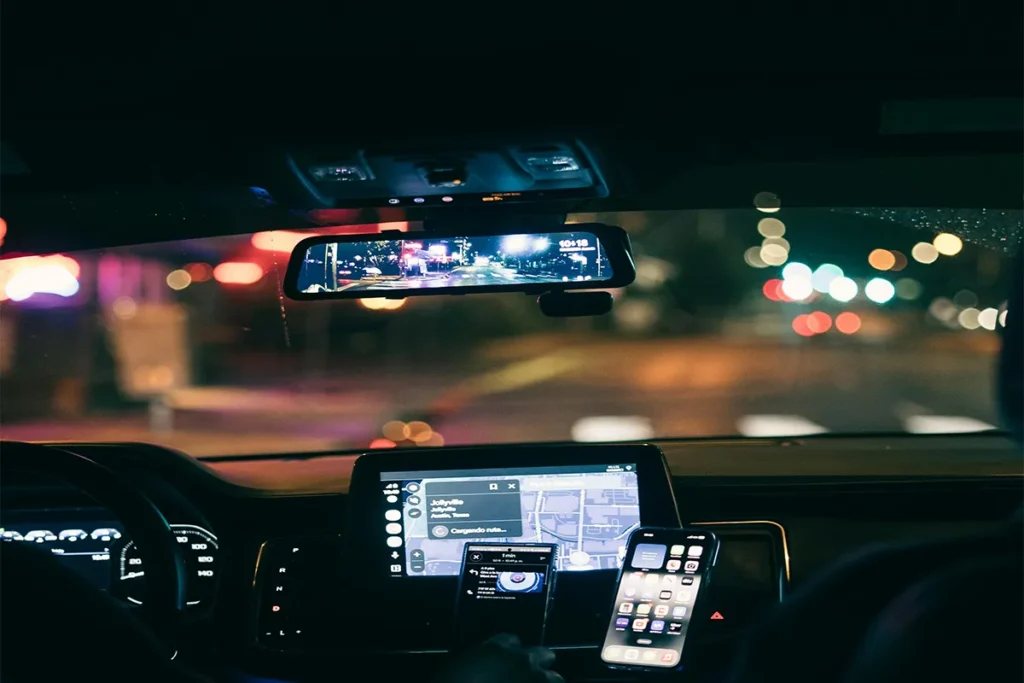
Another option is the driver-facing camera that looks only at the driver’s area. This small unit can work together with a front camera or a back camera. A short Verizon driver-facing camera guide should tell drivers what the camera records, who can see the clips, and how long the clips stay in storage. Once drivers know these rules and feel they are fair, they are more ready to accept the camera and see that it also protects them.
Pros:
- Focuses on driver safety habits.
- Shows seat belt and phone.
- Good for strict safety rules.
- Helps monitor high-risk routes.
Cons.
- No road view if alone.
- Raises strong driver privacy concerns.
- Camera can feel stressful, invasive.
- Needs a clear written safety policy.
Extra Camera Accessories
Some packs also include side, rear, or cargo cameras that work together with AI-powered dash cams. These extra cameras help in tight streets, busy yards, and loading spots. All clips from all cameras go to the same online account. You do not need to pull out memory cards or move between many different apps.
Which Verizon Dash Cam Is Right For You
Choosing the right AI dash cam for your motor car starts with your biggest worry. For some owners, the main fear is a crash and who is at fault. For others, daily driver habits feel just as important. A front road camera is often enough when you only need to see outside the car. A dual or driver camera is better when you also need to see what the driver was doing in that moment.
Big fleets often place cameras inside a larger Verizon fleet dash cam solution that also shows maps, fuel, and service dates. In that type of plan, all data sits together on one screen. Smaller firms may begin with one AI dash cam for work trucks on the busiest vans or trucks. Even a small business Verizon dash cam can cut false stories, protect drivers, and give owners a calmer mind.
Pre-Installation Planning For Any Model
Good planning before you touch the car makes the whole job feel lighter. Power, camera places, and account details all need a quick look. These steps stay almost the same for every Verizon camera, even when the shapes and cables change. When planning becomes part of the Verizon dash cam installation steps, the final setup looks neat, safe, and easy to check later.
- Pick a power source: Decide if you will use the 12V plug, the OBD port, or a hardwire kit, and then follow the guide that matches that choice.
- Choose each mount point: Find places that see the road and driver clearly, do not block the driver’s view, and do not sit on dark tint or big stickers.
- Prepare account details and IDs: Keep your login, plate numbers, and device codes ready so you can link each camera to the right vehicle without delay.
- Lay out tools and parts: Put glass cleaner, cloth, trim tool, clips, and zip ties in one place so you do not stop and search for things while you work.
Careful planning at this stage keeps airbags clear and wires out of the way. It also cuts waiting time for drivers while the car is parked for the install. Once the plan feels simple and clear in your mind, the rest of the job turns into many small steps that fit together.
Step-by-Step Setup For A Typical Road-Facing Camera
Although hardware versions differ, a basic installation follows a clear pattern.
- Clean the inside of the windshield where the bracket will sit.
- Attach the mount, press firmly, and make sure the lens is level.
- Route the power cable under the headliner, down the A pillar, and under the dash.
- Connect the power cable to the chosen source.
- Turn on the ignition and wait for the camera to start.
Use the portal or app to confirm that the device is online and linked to the correct vehicle.
After this, take a short test drive. Trigger a few normal events, such as smooth braking and simple turns, and then check the portal to ensure that the clips appear correctly.
Differences When Installing Dual Or Driver-Facing Cameras
Dual and driver-facing cameras need a bit more care when you place them. These units must see both the driver and the road in a fair way. They sit closer to the driver, so trust and comfort matter a lot. With a few slow and simple checks, these cameras can feel like a natural part of the cab, not a strange box in the wrong spot.
- Share the view between road and seat: Set dual cameras so both lenses see clearly, with the outside view level and the inside view aimed at the driver’s seat.
- Watch for bright glare: Look at how the sun and street lights shine on the glass and lens, and move or tilt the camera to cut that bright shine.
- Keep clear of airbags and trim: Run the cable beside pillars and roof edges, but never across any airbag cover or label near the driver.
- Talk about privacy and use: Tell the driver what the camera records, who can see the clips, and how the clips help with safety, so the driver does not feel secretly watched.
These extra steps help the camera fit into daily life in the cab. Drivers who see fair angles and clear test clips usually trust the system more. That trust makes later talks about hard clips feel softer and turns video into a tool for kind teaching, not only a tool for blame.
Using Cloud Video And Alerts
After the cameras are live, the cloud starts to do quiet work in the background. Event clips move from the car to your online page without any cable or card. Inside your account, you can click on a day, a driver, or a car and open only the clips you want to see. A well-set Verizon Dash Cam cloud video storage plan keeps these clips safe and easy to reach from the office or from home.
Alert rules and AI tools also change how the system feels. At the start, many owners send clips only for strong hits or very hard brakes. Later, they may add gentle bumps or short speeding clips if they need more detail. By turning these rules a little at a time, you avoid too much data while still saving the moments that matter most for teaching and for talks with the insurance company.
Coaching Drivers And Reducing Risk
Real power shows up when you use AI dash cams to guide drivers, not just to catch them. A short meeting around one clip can change a habit in a clear and kind way. In that small talk, you can play the clip, pause when something risky happens, and ask how the move could be safer next time. Many drivers see the same road in a new way when they watch the clip.
Over many weeks, calm talks like this can make daily driving smoother and safer. Fewer hard moves mean fewer close calls and less stress on the road. Simple notes about each talk, together with the clip, show your insurance company that you try hard to lower risk. That clear proof can support Verizon Dash Cam insurance benefits, because it shows a real plan to stop crashes, not just to record them.
Typical Issues And How To Fix Them
Even an AI dash cam with the longest battery life can still act in a strange way sometimes. A short fix list helps drivers and staff feel calm when something seems wrong. Most problems sit in a few clear places, like power, picture, and network. When you see fixing as part of troubleshooting Verizon dash cam issues, the problem turns into a small job instead of a big worry.
- Look at power and plugs: When the camera stays dark, check the plug, the cable, and any fuse, and make sure the power point turns on with the key.
- Check the lens and mount: When the picture looks fuzzy or tilted, clean the lens and see whether the mount has moved because of heat or bumps.
- Test network and device link: When clips do not show online, check that the device is active, set to the right car, and inside an area with mobile signal.
- Review alert and save rules: When only some clips are missing, open the settings and see whether the strength or event type filters are set too strictly.
By walking through this list one step at a time, most users can bring the camera back to normal without expert help. A small printed card with these steps in each glove box can guide any driver who feels stuck. This simple and calm way of fixing keeps trust in the camera high and helps make sure that important trips stay on record.
Table: AI Dash Cam Verizon
| Option | What it shows | Best for | Main benefits | Main limits |
|---|---|---|---|---|
| Road-facing dash cam | Road ahead through the windshield | Proving who caused a crash | Simple install, clear front video, and lower cost | No driver video and limited help for coaching |
| Dual-facing dash cam | Road and driver seat together | Coaching drivers and safety programs | Shows driver actions with road view and gives strong proof in claims | Higher price, more setup care, and clear privacy rules are needed |
| Driver-facing dash cam | Driver seat and steering area | High-risk routes and strict safety policies | Focus on seat belt use, phone use, and fatigue signs | Needs clear privacy rules and gives no road view if used alone |
| Side/rear/ cargo cameras | Sides, back, or load area | Delivery vans, trucks, and tight yards | Help with backing, loading, and side impacts | Extra install time, more cables, and more points of failure |
| Cloud video and alerts | Online clips and event list | Owners and managers who review incidents | Safe cloud storage and easy search by time, driver, or vehicle | Needs a data plan and a good mobile signal |
| AI event detection | Marked risky events | Fleets that want fewer risky moves | Mark’s harsh braking, sharp turns, and impacts, saves key clips | Wrong sensitivity can create too many or too few alerts |
| Insurance support | Video plus event history | Businesses with claim or dispute issues | Strong proof in crash disputes and may support better terms over time | Not all insurers give clear or fast discounts |
| Install difficulty | Mounts, wires, and setup steps | Any buyer planning self-install work | Road-facing units are easier, and clear steps help reduce mistakes | Poor planning can cause loose wires, weak mounts, or unhappy drivers |
| Ongoing use | Daily driving plus review sessions | Teams that meet drivers to discuss safety | Real clips help training and build safer habits over time | Needs time for regular review and talks with drivers |
| Best starter choice | Simple first setup with cloud support | Small fleets and single vehicles | Road-facing dash cam with cloud video and a few key alerts is a safe start | May later need an upgrade to dual-facing for deeper driver coaching |
Conclusion
The Verizon AI dash cam line gives owners and managers clear choices for many kinds of cars, vans, and trucks. A road camera helps show what happened in front of the vehicle. A dual or driver camera adds a view inside the cab and shows how the driver moved in each key moment. With cloud clips and easy alerts, the whole setup becomes more than a small box on the glass. It turns into a daily tool for safety and clear truth on the road. Recent research on AI dash cam performance and driver monitoring systems explains how different in-vehicle camera tools are tested and compared in real driving conditions.
For fleets that already use Verizon for maps and tracking, adding cameras often feels like one more simple step. New users can start with one or two cameras, follow this AI Dash Cam Verizon Review And Setup Guide, and then watch how crash counts and claims change over time. Many teams see fewer fights about fault and faster answers when a claim appears. Any owner or manager who cares about clear facts on the road can let Verizon AI dash cams grow into a strong helper that stays useful for many years.